ELAF Help · المساعدة

How can we help? · كيف نساعدك؟

Pick a step in the journey below, use the menu, or search. Each topic is in English, then Arabic.

The family journey · رحلة العائلة

Tap a step to open its help.

1 · Registration

Registration, from invitation to first lesson

About 5 minutes. You need your email and your children's names and birth years.

  1. Join the invitation list. On elaf.ca, tap a "try" button, then fill in this form. We email you when your place is ready.
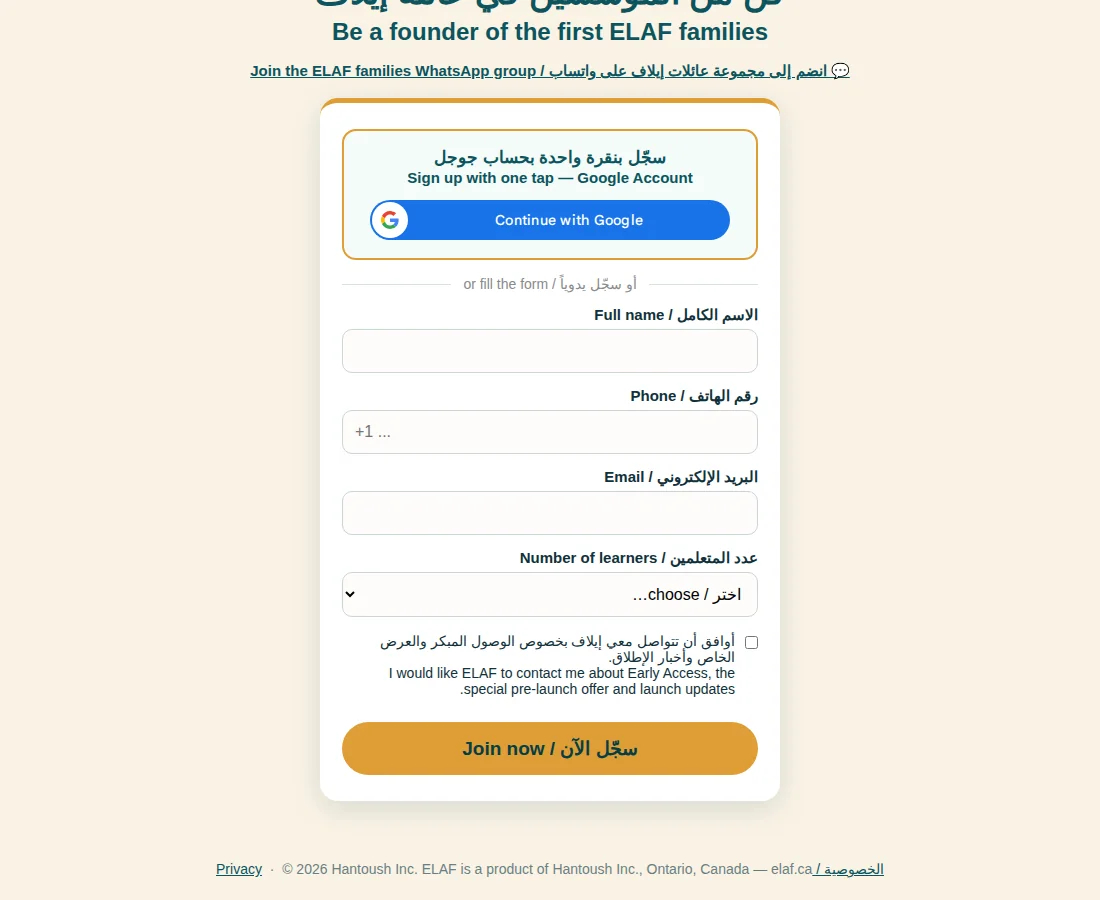
    Early access form
  2. Create your parent account. Tap Continue with Google, or fill in the form with your email and a password.
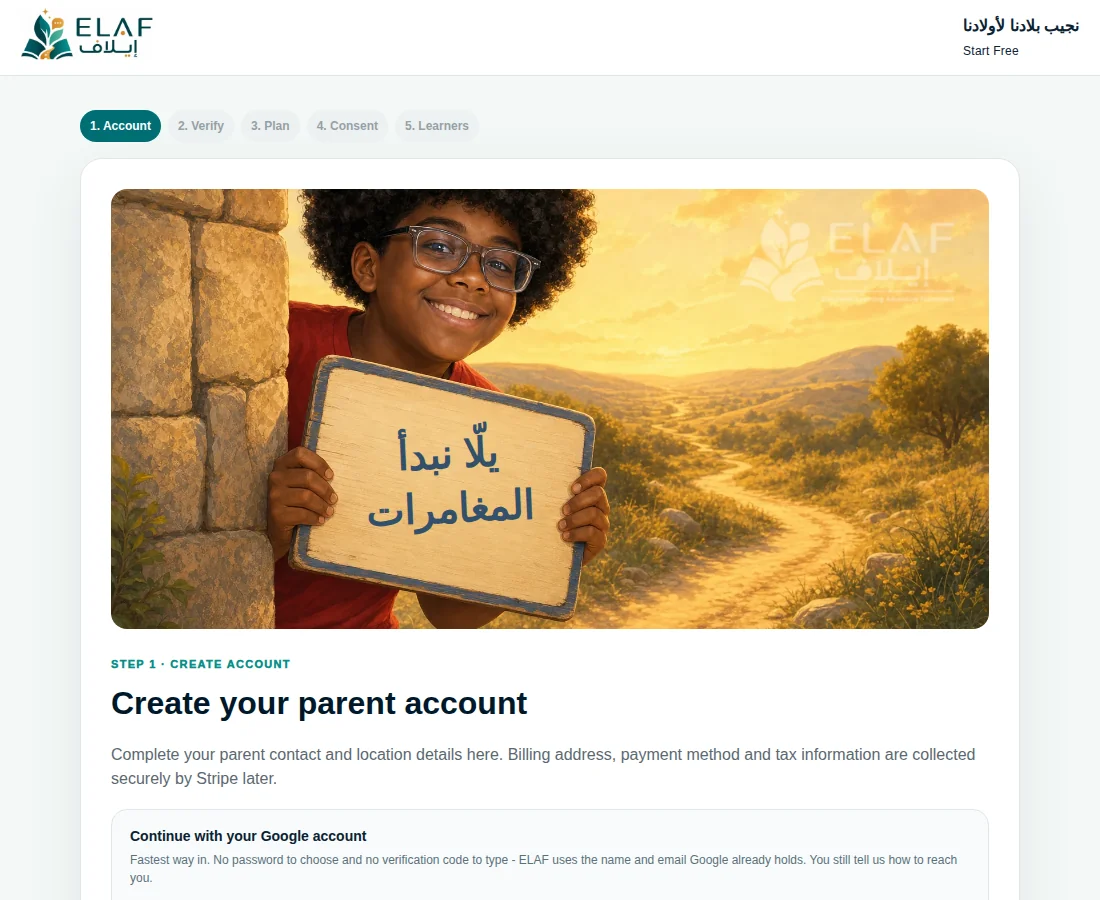
    Create your parent account
  3. Verify your email. Type the 6-digit code we emailed you. No code? Check Spam, then tap Resend Code. Google sign-ups skip this step.
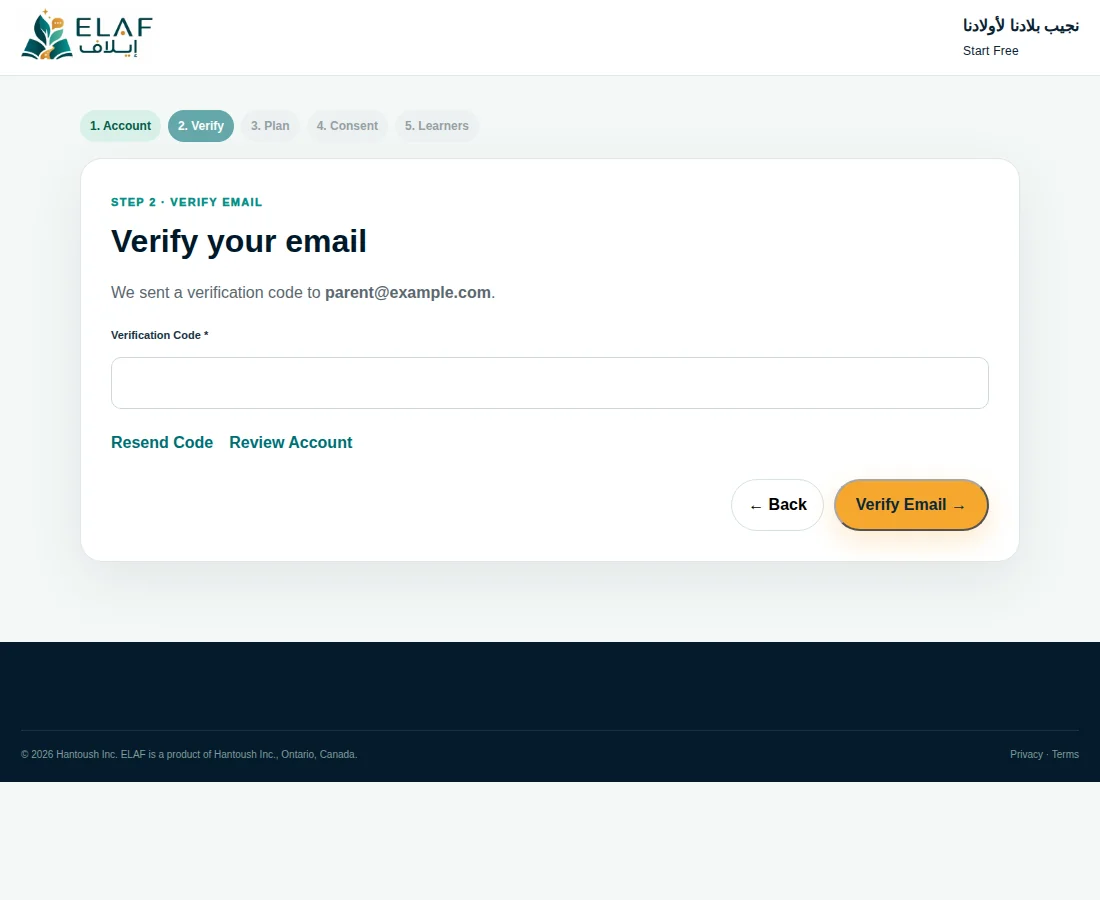
    Verify your email
  4. Choose your plan. Monthly or yearly, and how many children. The first 10 days are free and need no card.
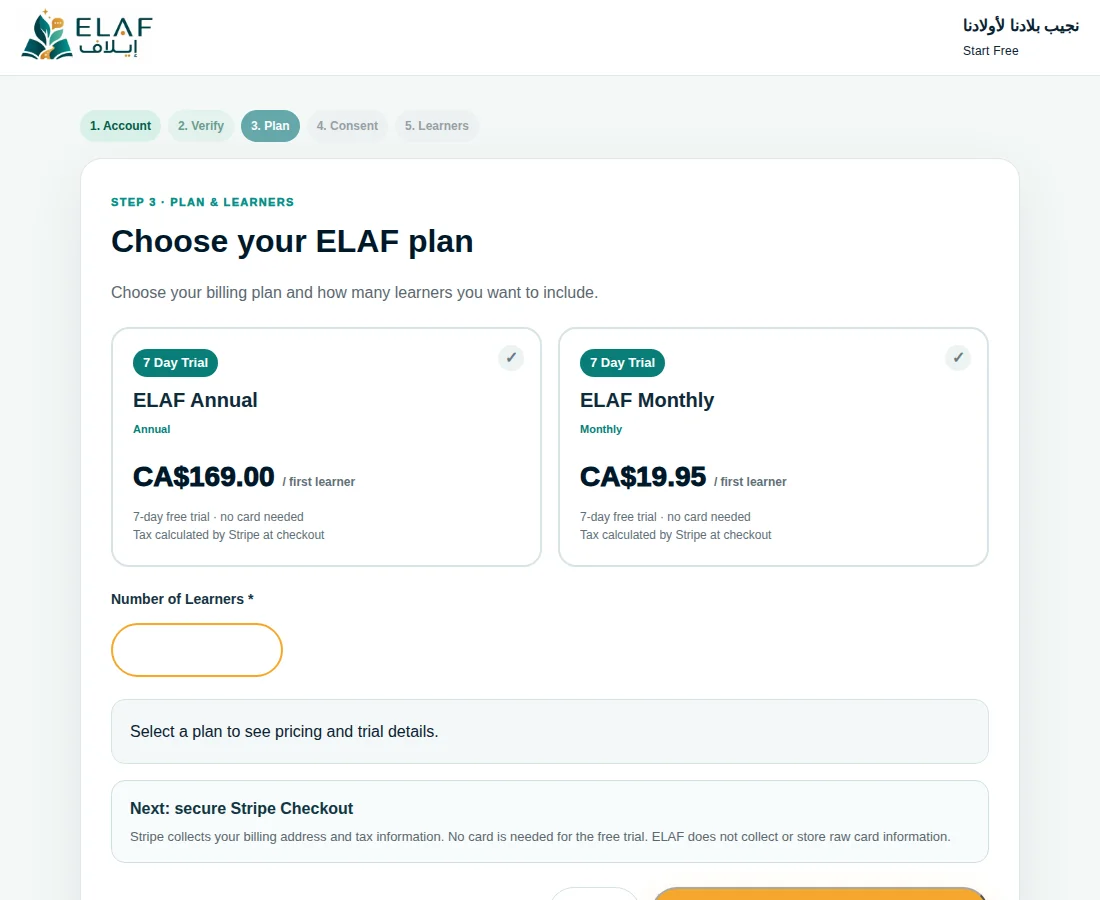
    Choose your plan
  5. Agree to the consents. Three are required. News emails are optional and never ticked for you.
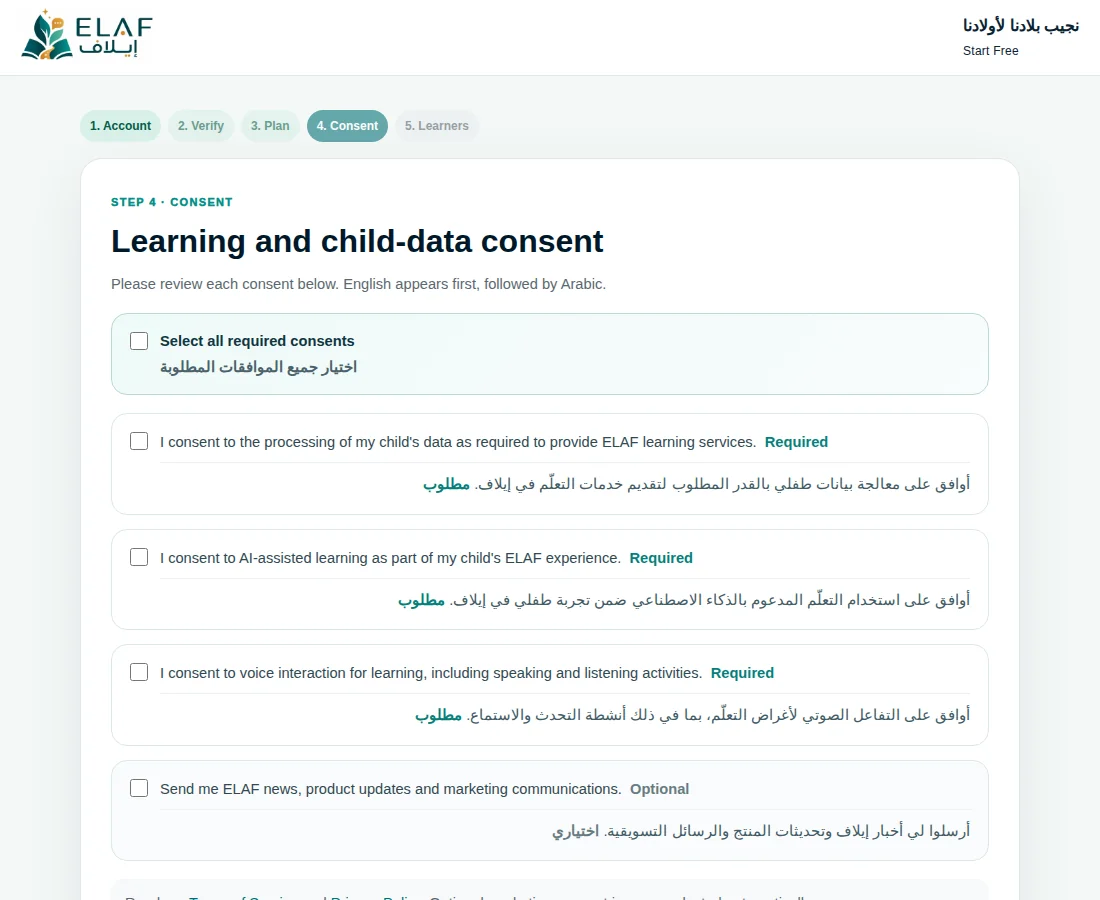
    Consents
  6. Add your children. For each child: name, year of birth, gender and Arabic dialect, then Save All Learners & Finish.
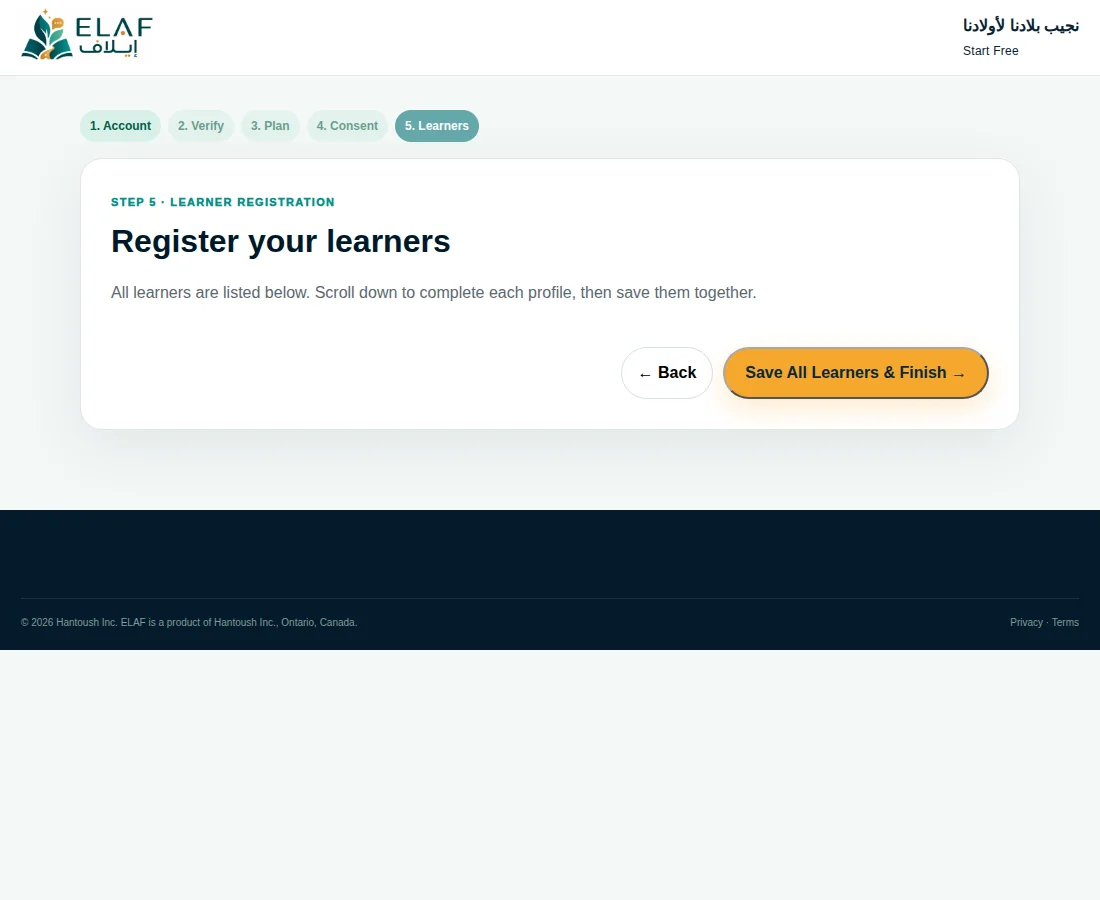
    Register your learners
  7. Open the app on your child's device. See Set up your child's device.

التسجيل، من الدعوة إلى أول درس

حوالي ٥ دقائق. تحتاج بريدك الإلكتروني وأسماء أطفالك وتواريخ ميلادهم.

  1. سجّل في قائمة الدعوات. في elaf.ca اضغط زر التجربة واملأ النموذج. نرسل لك بريداً عندما يجهز مكانك.
  2. أنشئ حساب الوالدين. اضغط Continue with Google أو اكتب بريدك وكلمة سر.
  3. أكّد بريدك. اكتب الرمز المكوّن من ٦ أرقام. لم يصلك؟ افحص مجلد Spam ثم اضغط Resend Code. من سجّل بحساب Google لا يحتاج هذه الخطوة.
  4. اختر الخطة. شهرية أو سنوية، وعدد الأطفال. أول ١٠ أيام مجانية وبدون بطاقة.
  5. وافق على الشروط. ثلاث موافقات مطلوبة. رسائل الأخبار اختيارية.
  6. أضف أطفالك. لكل طفل: الاسم وسنة الميلاد والجنس واللهجة، ثم Save All Learners & Finish.
  7. افتح التطبيق على جهاز طفلك. انظر تفعيل جهاز الطفل.

↑ Go to top · إلى الأعلى

Link for this topic: elaf.ca/help#registration
2 · Child's device

Set up your child's device

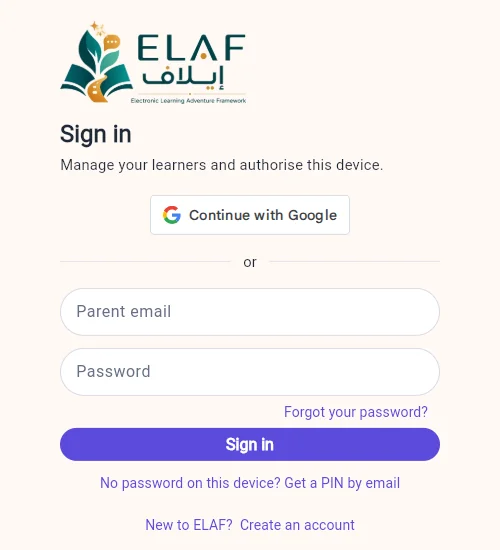
Do this once on each tablet or phone your child uses. Open ELAF on that device: app.elaf.ca in the browser, or on Android the ELAF app from Google Play. Pick one of three ways:

Continue with Google
If you signed up with Google. Your Google account does not need to stay on the device.
Email and password
If you signed up with your email.
Get a PIN by email
If you have no password here. How it works.
Sign-in screen with three ways

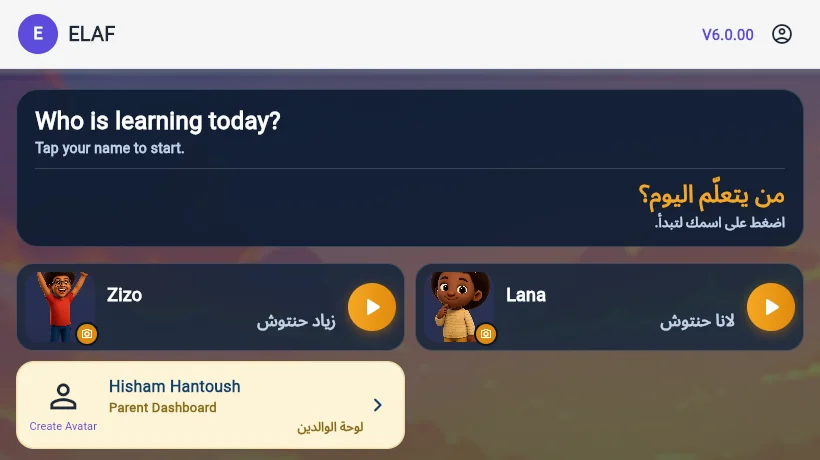
After signing in, tap Authorize This Device. Your children appear on the next screen.

Who is learning today

تفعيل جهاز الطفل

مرة واحدة على كل جهاز يستخدمه طفلك. افتح إيلاف على ذلك الجهاز: app.elaf.ca في المتصفح، أو في أجهزة أندرويد تطبيق إيلاف من Google Play. ثم اختر طريقة من ثلاث:

Continue with Google
إذا سجّلت بحساب Google. لا يلزم أن يبقى حسابك على الجهاز.
البريد وكلمة السر
إذا سجّلت ببريدك.
رمز بالإيميل
إذا لا توجد كلمة سر على هذا الجهاز. الطريقة.

بعد الدخول اضغط Authorize This Device، وسيظهر أطفالك.

↑ Go to top · إلى الأعلى

Link for this topic: elaf.ca/help#device-signin

2 · Child's device

Authorise a device with an email PIN

For when your Google account or password is not on your child's device.

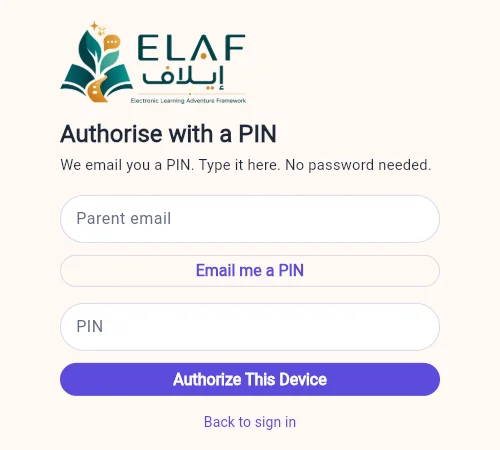
  1. On the child's device, tap No password on this device? Get a PIN by email.
    PIN screen
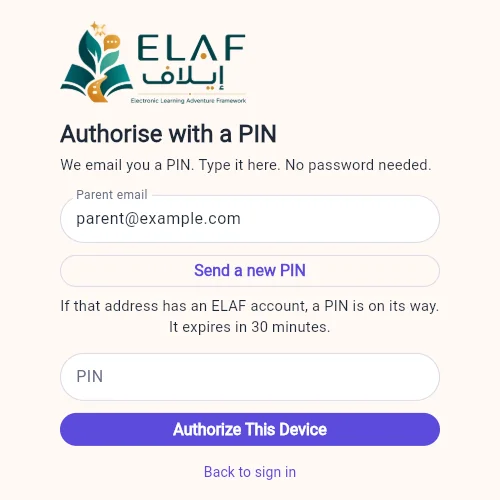
  2. Type your email, then tap Email me a PIN.
    PIN on its way
  3. Open the email on your own phone. Type the 6 digits on the child's device and tap Authorize This Device.
  4. Your children appear. Done.
Good to know: the PIN lasts 30 minutes. One PIN works on as many devices as you have children. 5 wrong tries cancel it; ask for a new one.

تفعيل الجهاز برمز بالإيميل

عندما لا يكون حساب Google أو كلمة السر على جهاز طفلك.

  1. على جهاز الطفل اضغط No password on this device? Get a PIN by email.
  2. اكتب بريدك ثم اضغط Email me a PIN.
  3. افتح البريد من جوالك، واكتب الأرقام الستة على جهاز الطفل، ثم اضغط Authorize This Device.
  4. سيظهر أطفالك.
معلومة: الرمز صالح ٣٠ دقيقة، ويعمل على عدد أجهزة يساوي عدد أطفالك. ٥ محاولات خاطئة تلغيه، فاطلب رمزاً جديداً.

↑ Go to top · إلى الأعلى

Link for this topic: elaf.ca/help#device-pin

4 · Lessons

The microphone: tap or hold

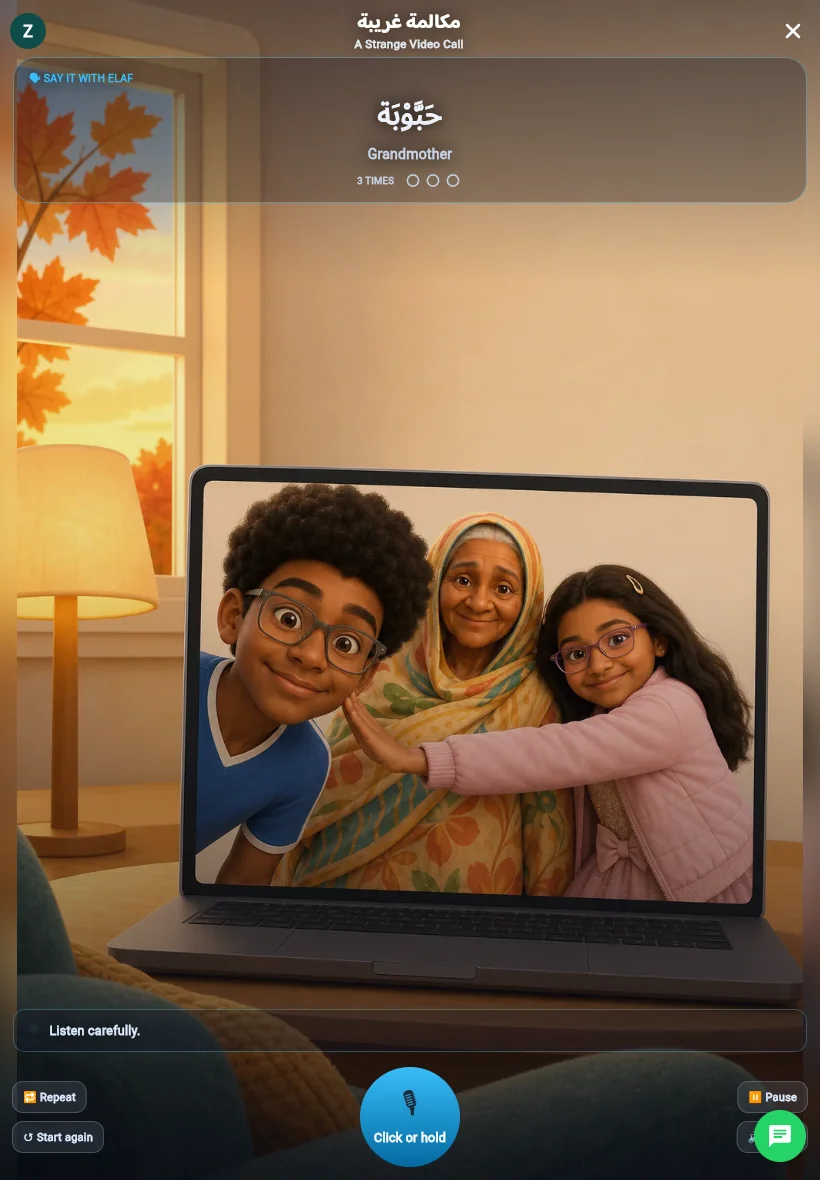
When ELAF asks your child to speak, the round button at the bottom reads Click or hold. There are two ways to use it:

Tap once
The button changes to Tap to send. ELAF listens and stops when your child goes quiet. Tap again to send sooner.
Hold
Keep a finger on the button while speaking. Let go when done.
Microphone waiting: Click or hold

Waiting for your child

Microphone listening: Tap to send

Listening

If your child says nothing, ELAF gives one gentle reminder, then says the answer and carries on.

Needs more time to answer? Change Listening time.

الميكروفون: ضغطة أو ضغط مستمر

عندما تطلب إيلاف من طفلك أن يتكلم، يظهر في الأسفل زر دائري مكتوب عليه Click or hold. طريقتان:

ضغطة واحدة
يتغير الزر إلى Tap to send. إيلاف تستمع وتتوقف عندما يسكت طفلك. اضغط مرة ثانية للإرسال أسرع.
ضغط مستمر
ضع إصبعك على الزر أثناء الكلام، وارفعه عند الانتهاء.

إذا لم يتكلم طفلك، تذكّره إيلاف مرة واحدة، ثم تقول الإجابة وتكمل.

يحتاج وقتاً أطول للإجابة؟ غيّر وقت الاستماع.

↑ Go to top · إلى الأعلى

Link for this topic: elaf.ca/help#microphone

7 · Parent area

Listening time

Some children need longer to answer. On the learner's page in the parent area, choose Standard, Extra or Extra plus. It applies to that child only, on every device.

وقت الاستماع

بعض الأطفال يحتاجون وقتاً أطول للإجابة. من صفحة الطفل في ركن الوالدين اختر Standard أو Extra أو Extra plus. يطبَّق على هذا الطفل فقط، على كل الأجهزة.

↑ Go to top · إلى الأعلى

Link for this topic: elaf.ca/help#listening-time

8 · Account

Delete a learner or your ELAF account

This is how a parent removes a child, or the whole ELAF account and every child on it, from the ELAF app and website (ELAF, by Hantoush IT Inc).

  1. Open ELAF on your child's device, or go to app.elaf.ca.
  2. On the screen that lists your children, tap the account icon at the top (Account Profile). Sign in as the parent if asked.
  3. To remove one child: tap Delete learner on that child. To remove everything: tap Delete my ELAF account.
  4. Confirm. We email you a link that can undo it for 7 days.

What is deleted: the child's profile, progress, answers and avatar; for the account, also your parent details, sign-ins and every child. The plan stops renewing at once. After 7 days it is erased for good. Payment records stay with our payment provider, as tax law requires.

No access to the app? Email support@elaf.ca from the address on your ELAF account and ask us to delete your account or one child. We reply within 30 days.

حذف طفل أو حساب إيلاف

هكذا يحذف الوالد طفلاً، أو حساب إيلاف كاملاً مع كل الأطفال، من تطبيق إيلاف وموقعه (إيلاف، من Hantoush IT Inc).

  1. افتح إيلاف على جهاز طفلك، أو ادخل إلى app.elaf.ca.
  2. في الشاشة التي تعرض أطفالك، اضغط أيقونة الحساب في الأعلى (Account Profile). سجّل الدخول كوالد إذا طُلب منك.
  3. لحذف طفل واحد اضغط Delete learner عند ذلك الطفل. ولحذف كل شيء اضغط Delete my ELAF account.
  4. أكّد الحذف. نرسل لك بريداً فيه رابط يلغي الحذف خلال ٧ أيام.

ما الذي يُحذف: ملف الطفل وتقدّمه وإجاباته وصورته الكرتونية، ومع الحساب أيضاً بياناتك وسجلّ الدخول وكل الأطفال. يتوقف تجديد الاشتراك فوراً، وبعد ٧ أيام يُمحى كل شيء نهائياً. تبقى سجلات الدفع لدى مزوّد الدفع كما يطلب قانون الضرائب.

لا تستطيع فتح التطبيق؟ أرسل بريداً إلى support@elaf.ca من البريد المسجّل في حسابك واطلب حذف الحساب أو طفل واحد. نرد خلال ٣٠ يوماً.

↑ Go to top · إلى الأعلى

Link for this topic: elaf.ca/help#delete